Set up Search & Display languages
You can configure your search and display languages from the search panel.
Configure your search language(s)
The search language is the language used to search through the term database. You can enable multiple languages and doing so will return results in the hit list where the term searched is present in all languages selected.
By default your search language will be set to EN_US. You can modify the search language(s) at any time by clicking the Search languages(s) field in the search panel.
A dialog box will appear, allowing you to select and arrange the languages you'd like to enable as well as rearrange the order in which the languages appear to best suit your needs.
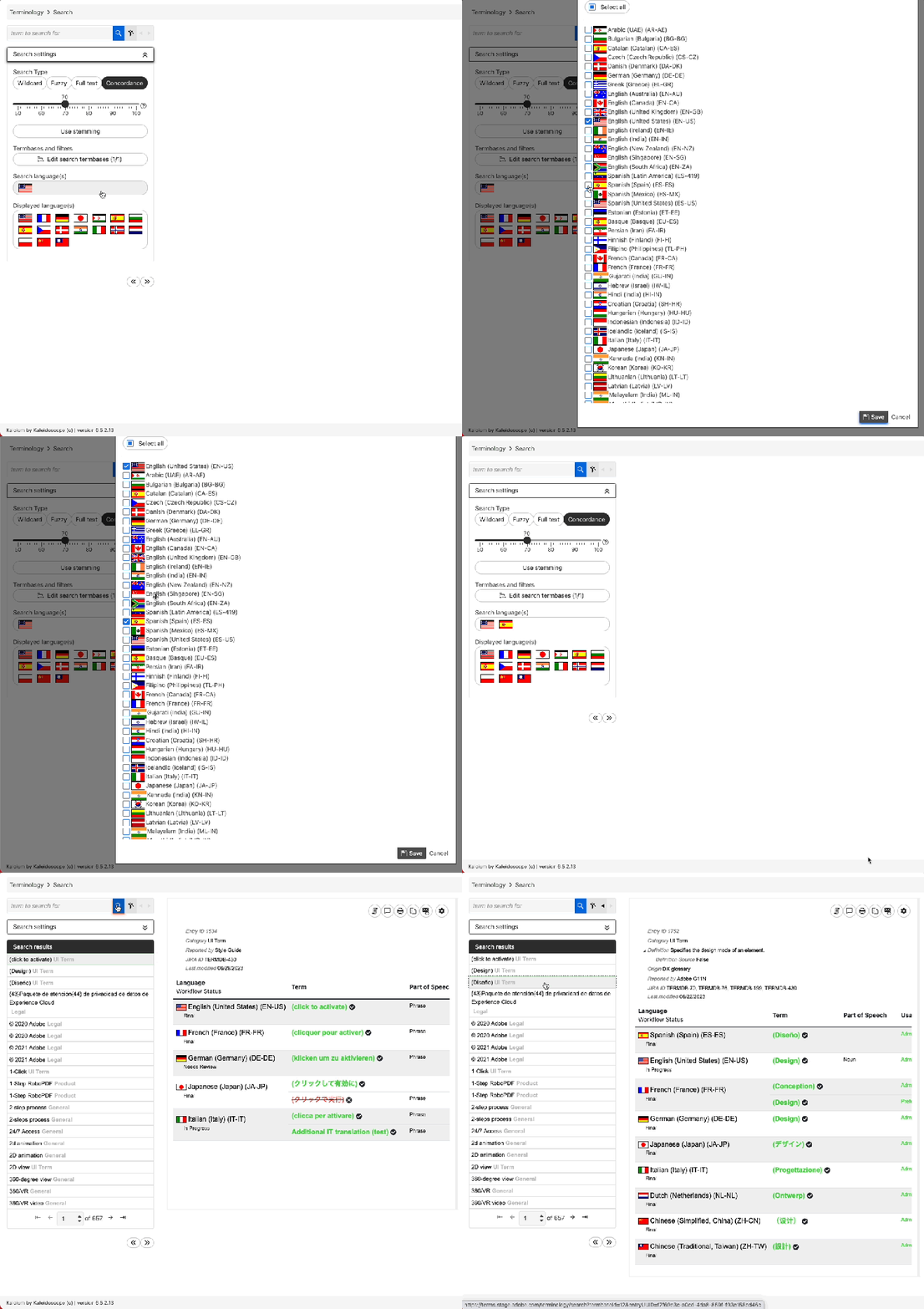
Note: Setting multiple search languages will result in multiple terms for the same concept being returned in the hitlist for any search. See above example where both (Design) and (Diseño)
Configure your Display language(s)
By default, Adobe's Tier 1-3 languages (French, German, Japanese, Brazilian Portuguese, Danish, Dutch, Finnish, Italian, Norwegian, Spanish, Swedish, Chinese Simplified, Chinese Traditional and Korean) will automatically be displayed.
You may want to narrow down the set of languages displayed to only see the translations for language(s) specific for your use case. You can do this simply by checking and unchecking them from the Displayed language(s) dialog.
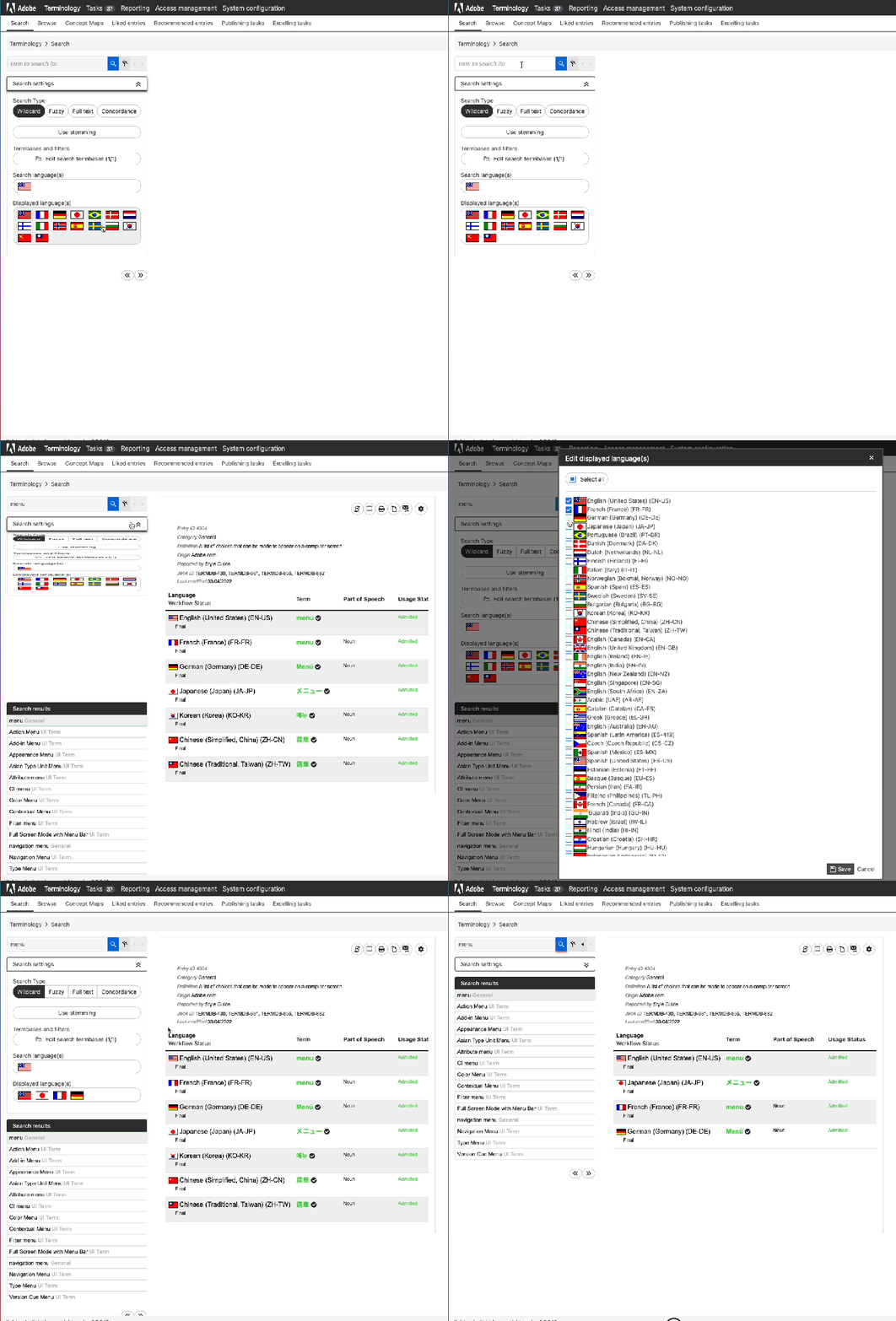
Note the languages selected as well as the order you arrange them in the Displayed language(s) field impacts not only the languages of terms displayed, but also the order they will show up in.
As you see in the above example initially all Tier 1-4 languages are selected with French being the first language displayed after EN US. Once the user reselects and reorders the languages, Japanese is then the first language displayed after EN US .
Once you search for a specific term, you can choose how to view the entry. The search result page has a gear icon on the top right corner of the page that configures the view: