Translation tasks
A guide for Language Leads on how to manage translation tasks
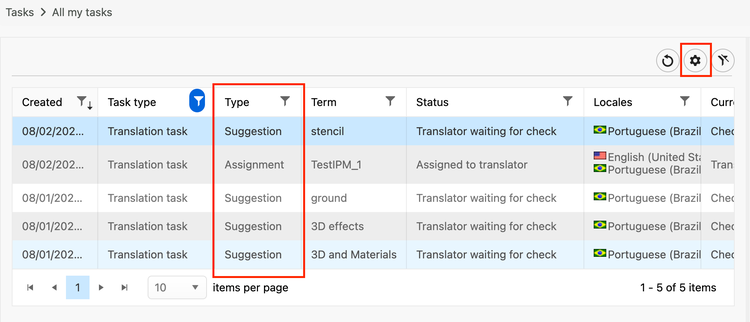
As a Language Lead, you may be assigned translation tasks via one of two ways:
- A translator from your company has suggestion a translation and it requires your review
- A translation task is assigned directly to the you from either an Adobe Terminology Team member or your company's Vendor Linguistic Manager
Preview the entry & term
When you receive a task it will appear in your task list. From here, the first thing you want to do is make sure you understand the concept.
Clicking on the task from your task list will open the preview tab on the right and from here you'll see the entire entry and your locale and/or the suggestion will be highlighted in green.
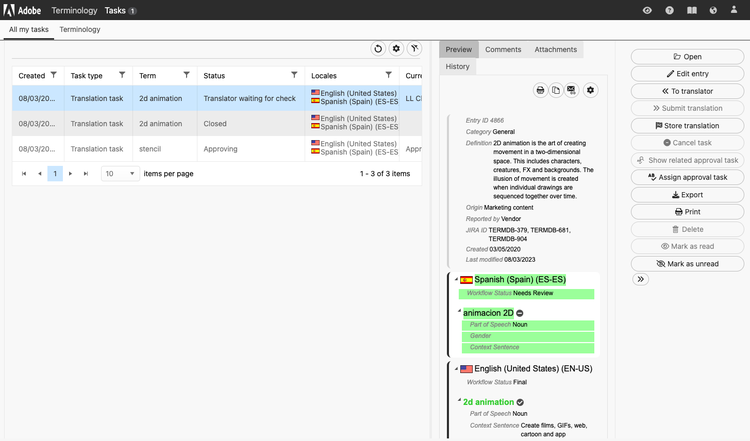
When you're ready, you can click Open to view the task in a dedicated window.
Provide translation & metadata
Opening the task will open the Edit 'Translation task' window which gives you multiple resources to help you in providing a quality translation.
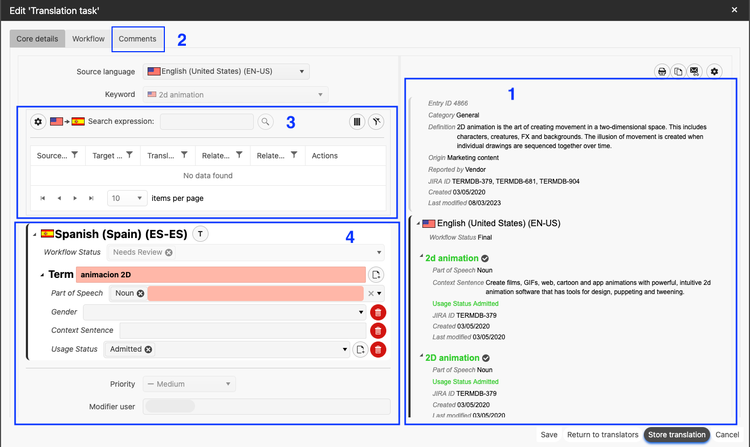
- Entry Preview - This is where you can see an overview of the entry you will be providing the translation for.
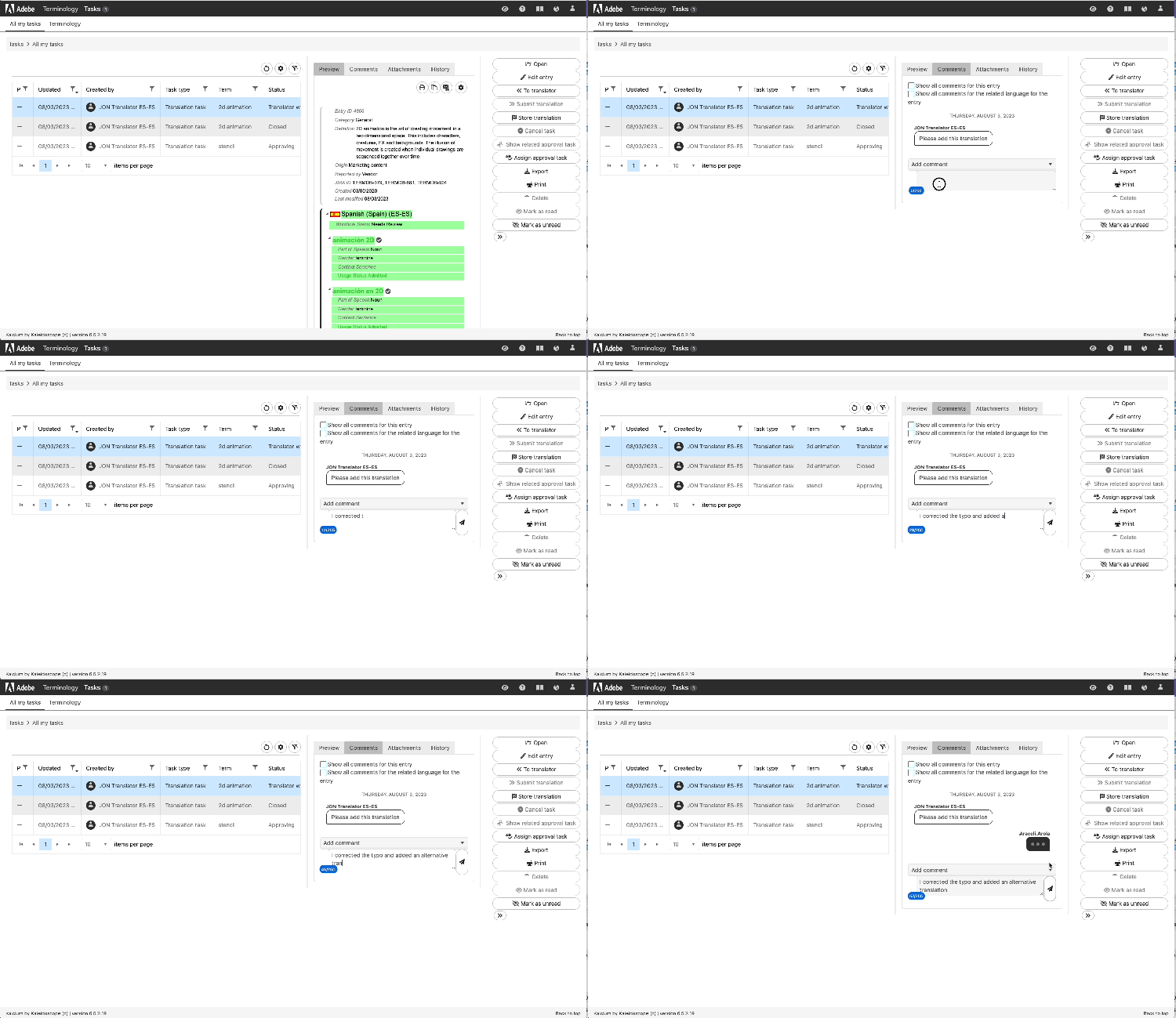
- Comment Tab - You can check this to see if the requestor or suggester has provided any information relevant to the request. You can also use this to ask the requestor/suggester any questions or clarifications. The comment tab can also be accessed from the task preview as shown below.
- Search Expression Panel - You can use this to search directly from this window for any existing / similar terms in the TD or any translation memories we have connected to Quickterm.
- Language Editor - You'll use this to provide your translation/s and any metadata for your language.
Here's an example of how you may use the comment tab to ask a question or update the suggester:
Here's an example of how you might use the search expression panel to search for any existing / similar terms in the TD or any translation memories we have connected to Quickterm:
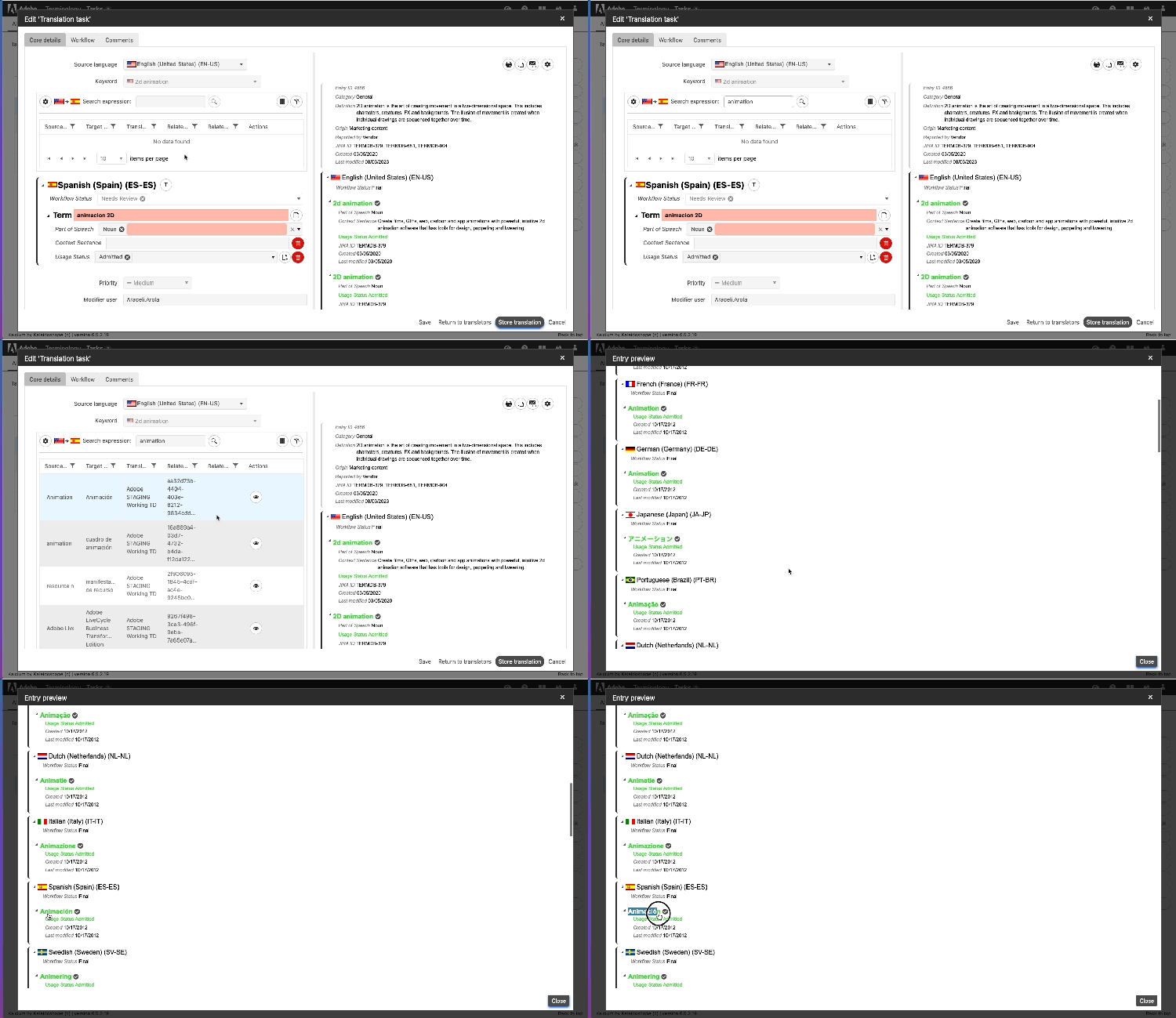
Here's an example of how you'll use the language editor to provide translations and metadata.
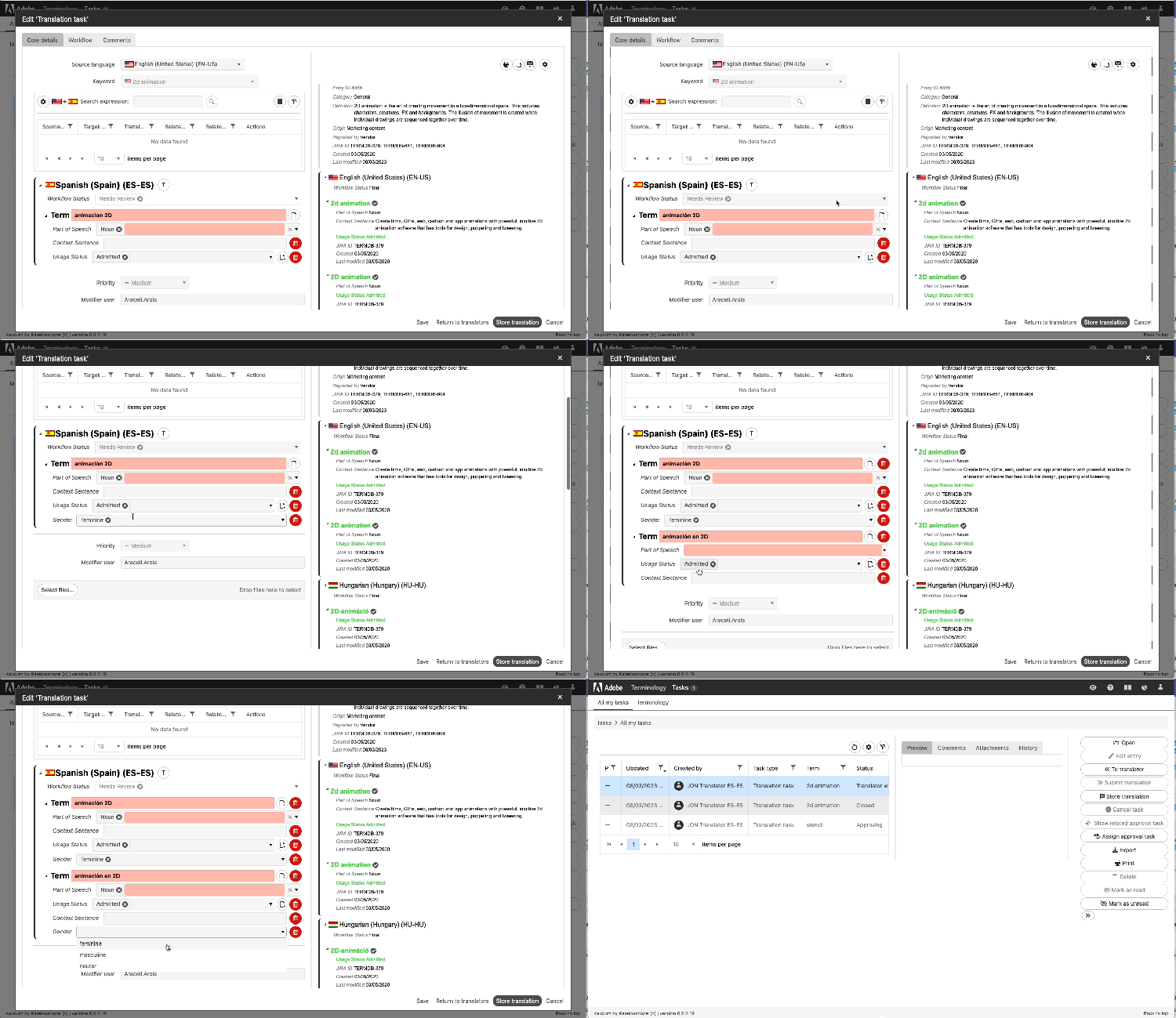
In this example you see the lingust adding relevant metadata by clicking the 📄 icon and adding additional terms by clicking the T icon.
Once you're happy with your translation you can click Store translation and the translation will then be passed on to the terminology team for approval before being added to the termbase.
How to differentiate between the two types of translation tasks?