Translation task
🚨 VLMs should only kick off a translation task when they are sure the source term (term request) is valid /has previously been discussed with the terminology team or once it has been approved by the Terminology Team 🚨
If a translation task is kicked off before the EN term has been approved or without discussing it with the terminology team, then this may result in translations being collected for a concept that is rejected by the terminology team
The translation task allows you to assign a particular term to be translated by a language lead.
The Terminology Team can select from any vendor workflow available to assign the translation task, while Vendor Linguistic Managers can only assign to their own company language leads.
A translation task can be assigned via one of two ways:
- Directly from the term page showing the entry
- From a request / task in your task list
From the term page
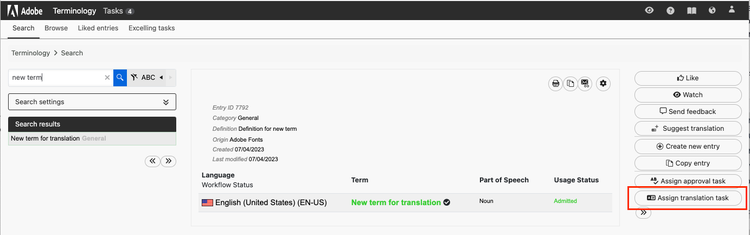
Search for the term in the TD and select the Assign translation task button
From the task list
After creating the term in the termbase (part of handling the term request task) the Assign translation task button will become available for you to click.
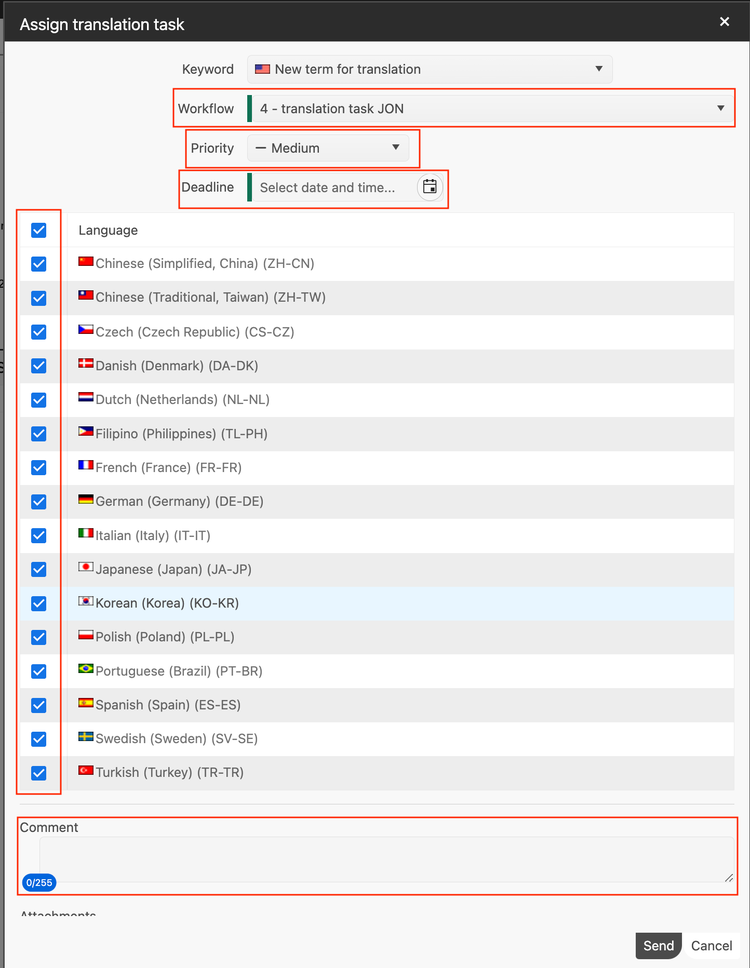
A dialog box will then appear where you can select the following:
- The workflow, this is essentially where you can select which vendor to assign the translation task(s) to.
All workflows will appear for the Terminology Team and the workflow to select will depend on the term type / whether it is relevant for a particular product whereby this should be communicated by the IPM.
- The language(s) you want to request translation(s) for. This will differ according to the vendor workflow selected as different vendors are responsible for different languages. By default all languages are selected, you can uncheck as many as you need to be left with just those necessary for the particular task
- A priority level for the task
- A deadline for the task so the language lead knows when to complete the task by
- You can also add a comment or any attachments to the request that will be visible to the language lead when they receive the task
This sends the request to the respective language leads of the vendor you selected.
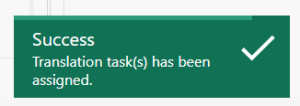
Once you click Send you should see the success banner in the bottom right of your screen