Request new term
Can't find a term in the database that you think belongs there? Simply make a new term request.
From the Terminology tab, click the Request new term button.
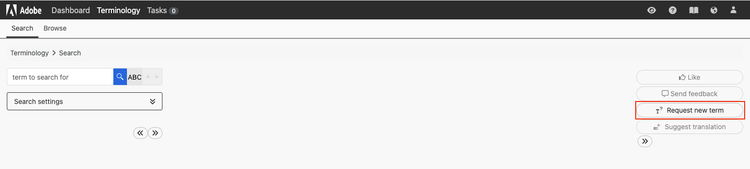
The Request new term dialog box will open and from here you can specify your request and the scope in the comment box.
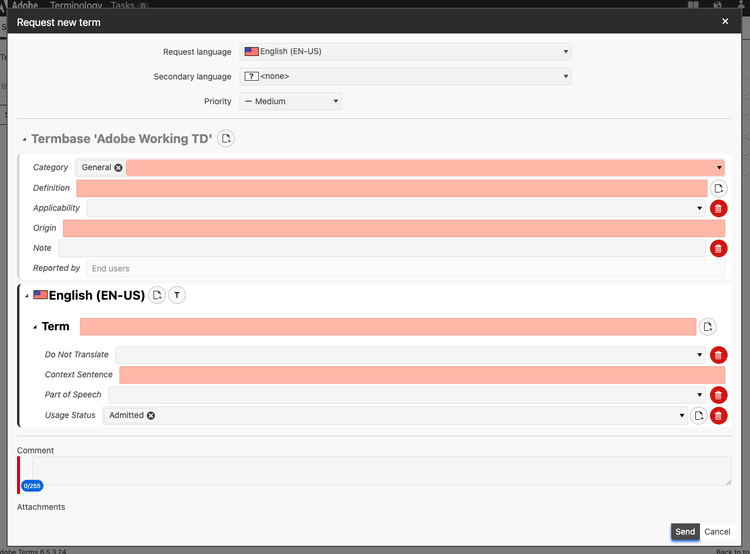
A dialog box will appear where you can provide the term and the term metadata. Add a comment or attach a file
Add metadata
Mandatory metadata will be highlighted in red. Depending on your role, the mandatory metadata you need to provide will vary.
We expect all users to provide a Context Sentence and Origin (The 'Origin' field denotes the product / specific page that this suggestion is coming from. It helps the terminology team clarify it later down the line).
Some users will be required to provide a Definition. If this is the case for you, you should make sure to contact your vendor partner/product team to clarify any definition you're unsure of.
If you believe the requested entry is only applicable for a specific BU (DMe, DX or PPBU), you can select the relevant BU under Applicability. If the entry is further only applicable only to a specific product, please select the product under Specific Applicability. If you're not sure, we advise you leave Applicability empty.
Additional metadata
You can click to add additional metadata at both the entry and language levels by clicking the page icons as shown in the gif below.
Add secondary language
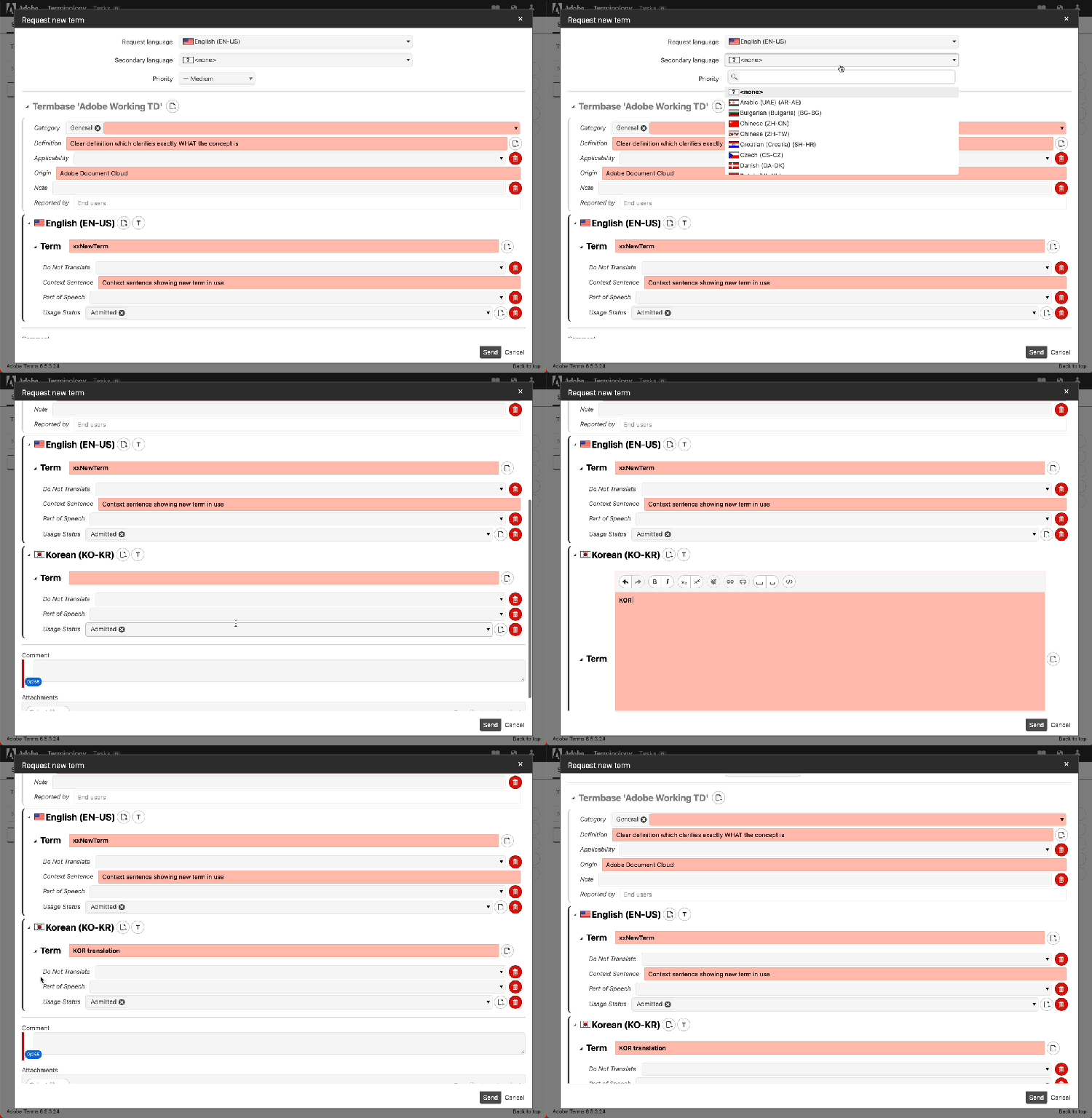
The Request language should always be set to English (United States) as that is the source language for Adobe's termbase, but if you'd like to provide a translation with your request, you can do this by selecting a Secondary language from the drop-down.
This will add fields for the language selected where you can provide translation and relevant metadata.
Requesting multiple terms for the same language
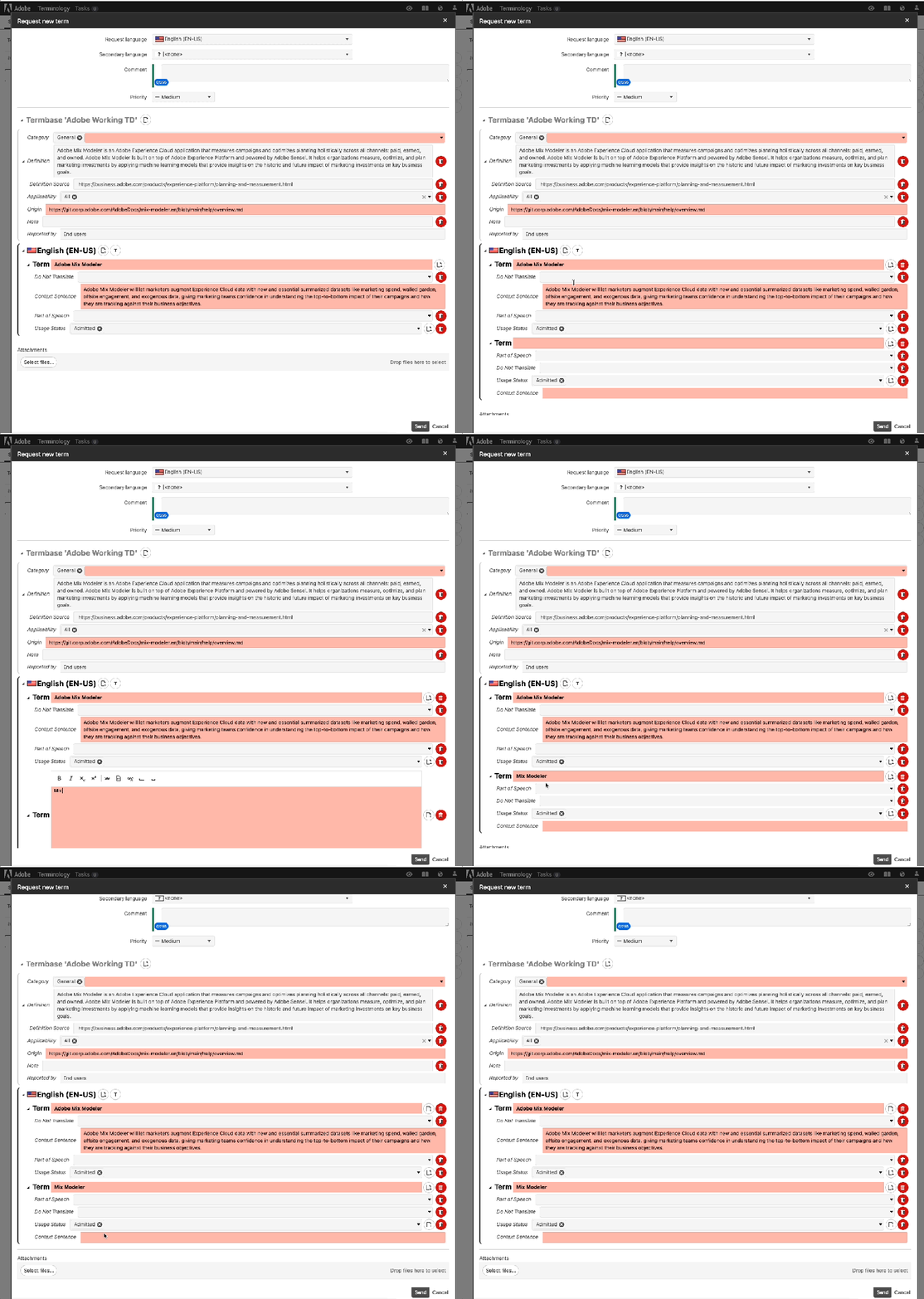
Often for things such as product names, there are primary and secondary uses for terms but they fall under the same concept (entry). Additionally, you may want to multiple variations of the same term (e-mail & email) or singular and plurals. This can be captured in Quickterm by adding multiple terms in the same entry using the T button next to the language.
This can be done for any language including target languages.
Add a comment or attach a file
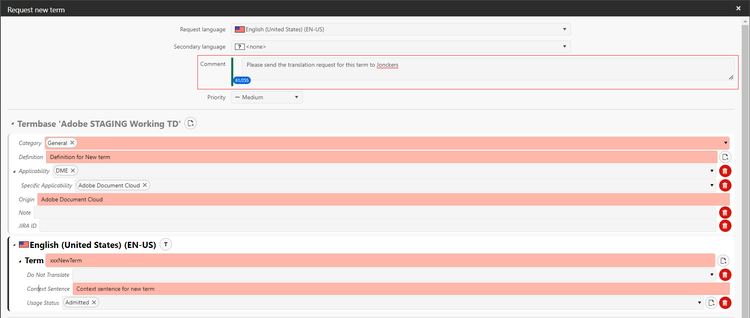
You can add a comment or attach a file to the request to provide any context or specific information / screenshots you think may be helpful for this request.
Submit
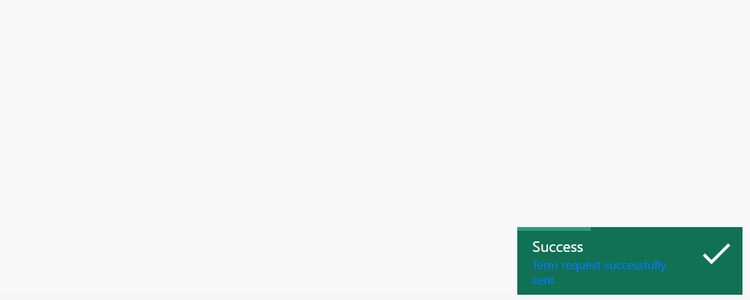
When you're happy with your request, hit 'Send' and you should see a Green success confirmation message. This request will then be passed on to the Terminology Team or your Vendor Linguistic Manager depending on your role.